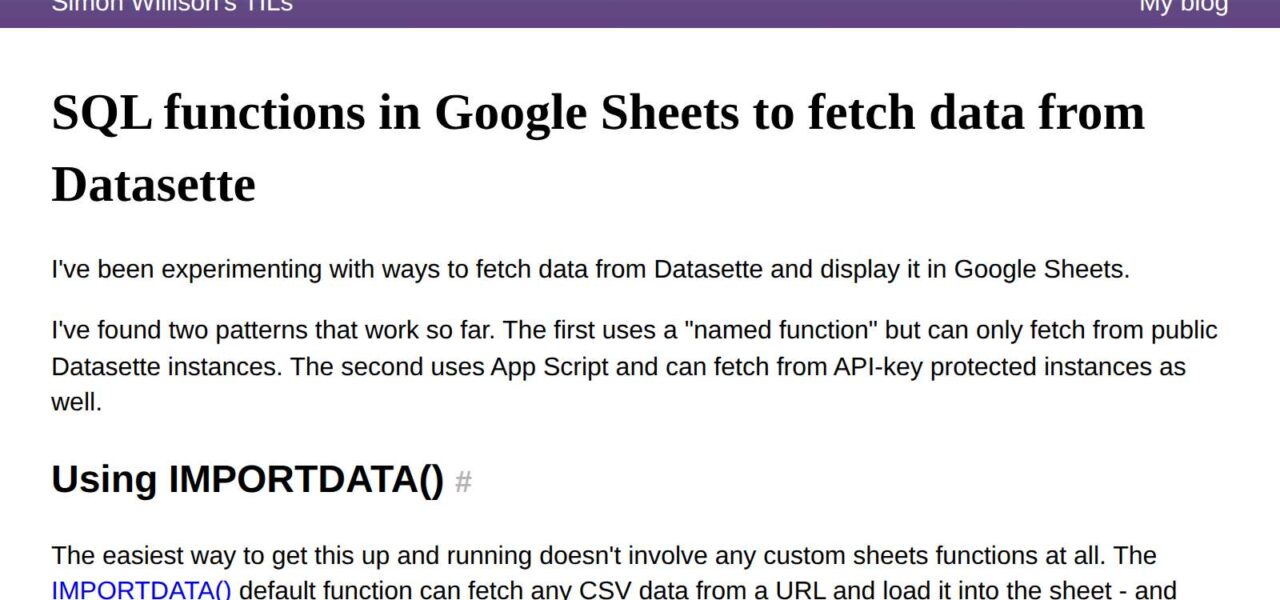
You can query Datasette instances directly from Google Sheets using SQL and pull results as live-updating tables. This skips ETL pipelines and heavy integrations, letting anyone remix SQLite data in spreadsheets. Datasette, Simon Willison’s 2017 tool, serves databases via HTTP APIs, including CSV endpoints perfect for Sheets’ IMPORTDATA function.
The core trick exploits Datasette’s .csv view. Append your SQL query URL-encoded to the endpoint, like https://example.datasette.io/database.json?sql=SELECT%20*%20FROM%20table%20LIMIT%2010&_format=csv. Drop that into Sheets’ IMPORTDATA formula, and it renders as a table. Sheets refreshes every 1-2 hours automatically, or force it with Ctrl+R.
Three Methods, Ranked by Complexity
Start simple: IMPORTDATA handles public Datasette instances without auth. In cell A1, enter =IMPORTDATA("https://global-power-plant-database.datasette.io/powerplants.json?sql=SELECT%20name%2C%20country%2C%20primary_fuel%20FROM%20powerplants%20WHERE%20country%3D'US'%20LIMIT%2050&_format=csv"). It fetches 50 US power plants’ names, countries, and fuels. Results spill into adjacent cells as CSV rows. No setup, works instantly.
For reusable queries, define a named function. Go to Data > Named functions, create one called FETCH_DATASETTE that wraps IMPORTDATA. Formula: =IMPORTDATA(A1&"?_format=csv"), where A1 holds your base URL + SQL. Reuse it across sheets like =FETCH_DATASETTE("https://example.datasette.io/db.json?sql=SELECT..."). This cleans up sheets cluttered with long URLs and lets you parameterize—swap variables via cell references.
Authentication demands Google Apps Script. IMPORTDATA ignores HTTP headers, so token-authenticated Datasettes (common for private data) fail. Script a custom function: Tools > Script editor, paste this:
function FETCH_DATASETTE_AUTH(url, token) {
  var options = {
    'method': 'get',
    'headers': {
      'Authorization': 'Token ' + token
    }
  };
  var response = UrlFetchApp.fetch(url + '?_format=csv', options);
  return Utilities.parseCsv(response.getContentText());
}
Save, then use =FETCH_DATASETTE_AUTH("https://your.datasette.io/db.json?sql=SELECT...", "your_api_token"). Returns a 2D array fitting Sheets perfectly. Tokens stay in your script or hidden cells—don’t expose them publicly.
Real-World Tradeoffs and Security Realities
This setup shines for analysis: journalists query public Datasettes like California housing data or GitHub repos, analysts build dashboards on live SQLite exports. Datasette powers 1,000+ instances, from newsrooms to indie projects, with queries executing server-side for efficiency—no client-side compute.
But skepticism applies. Sheets caps IMPORTDATA at 50 calls per sheet, refreshes lag (up to 30 minutes under load), and CSV limits to 10MB payloads. Complex SQL with JOINs or aggregations might timeout on free tiers. Public queries expose your SQL to Datasette logs—fine for open data, risky for proprietary.
Security flags: Apps Script runs under your Google account, inheriting Sheets’ sharing rules. Leaked tokens grant full DB access. Datasette’s token auth is basic; pair with HTTPS and short expirations. No row-level security here—Sheets pulls everything your query asks.
Why this matters: It lowers barriers. Non-devs access structured data without Airtable or BigQuery costs. Pair with Sheets’ QUERY or PIVOT for instant viz. In finance/crypto, query on-chain SQLite dumps for portfolio tracking. Tech teams prototype faster than Jupyter. Yet, for production, migrate to proper APIs—Sheets crashes on 100k+ rows. Test limits first.
Demo sheet? Recreate via the formulas above on Simon Willison’s playground.datasette.io. Scales from hobby to lightweight BI, but know when to outgrow it.